¶ How to edit the wiki
If you have permissions to edit, you will see a series of options in the upper right corner of the wiki.
1. In the upper right corner login using your zooniverse account.
2. Once logged in you should see the following full edit options if you have permissions.

3. You should also see the following list of quick page edit options at the bottom right.
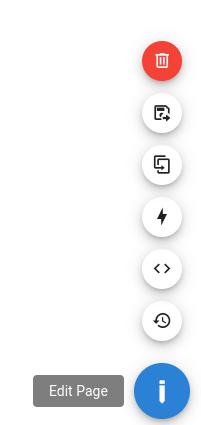
4. If you do not see these options, then you do not have editing privileges and may request permissions from an administrator.
¶ Editing an existing page
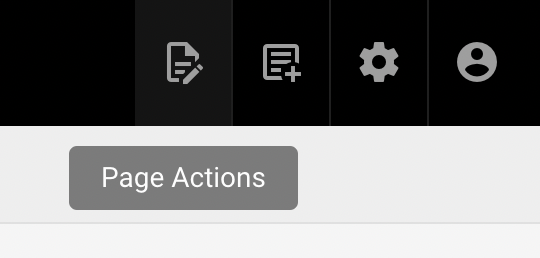
Go on the page you want to edit and click on "Page Actions" in the top right corner or "Edit Page" buttons in the lower right corner. Notice that the buttons for "Edit Page" and "Page Actions" are in reverse order of each other, but otherwise they are precisely the same options.
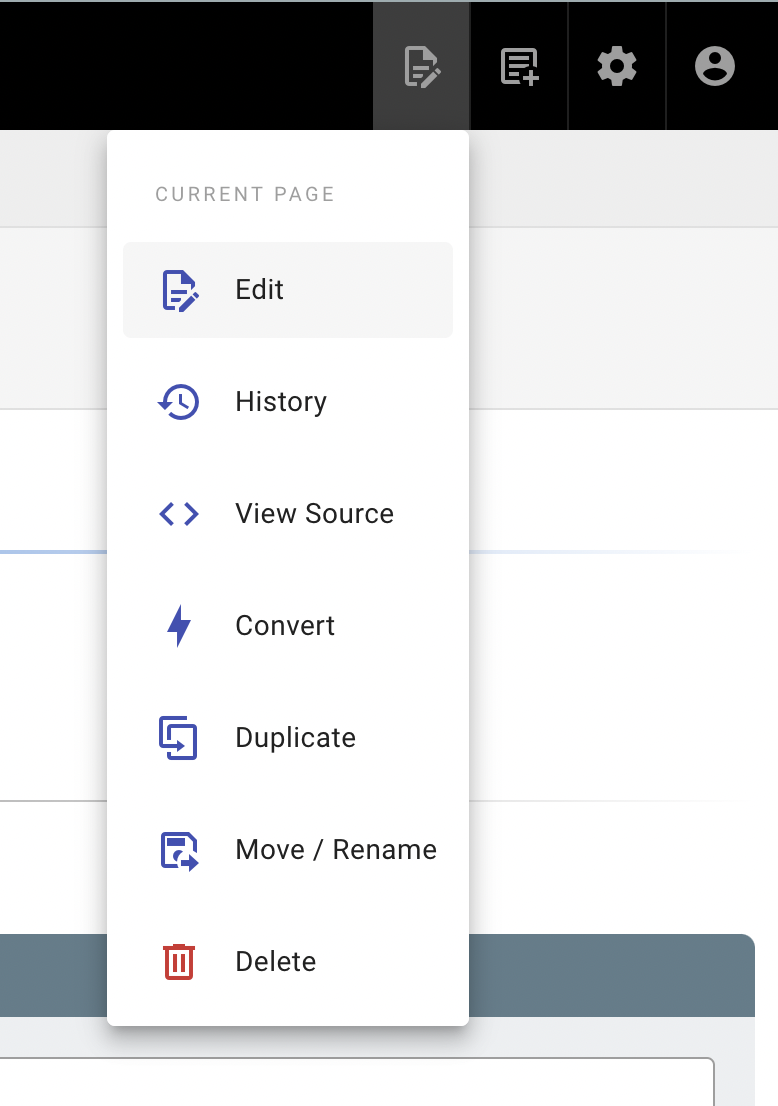
A drop down with different actions will appear:
- Edit: for editing the page
- History: for viewing page change log of the page
- Source: for viewing page source
- Convert: for changing the file type of the page (e.g. Markdown to HTML)
- Duplicate: to duplicate the existing page
- Move/Rename: for putting the page in a different URL/File location
- Delete: for deleting the page (DO NOT DO THIS!)
Click on "Edit."
Or on the bottom on the page you will see a pencil graphic in a blue circle, this will also give you the option to edit.

3. The wiki uses both Markddown and html pages. If it is a Markdown page you will see the view below.

¶ Adding Images and links
On the vertical left menu, click on the image icon  and the options to upload, fetch remote image and aligning the image will show. Pick the option that best suits the situation.
Similarly, to add links, click on the link icon on the menu column that is found on the left side of the page which is above the image icon and follow the instructions.
¶ Making a new page
Go to the new page button.

A dialogue box should appear that looks similar to the following:
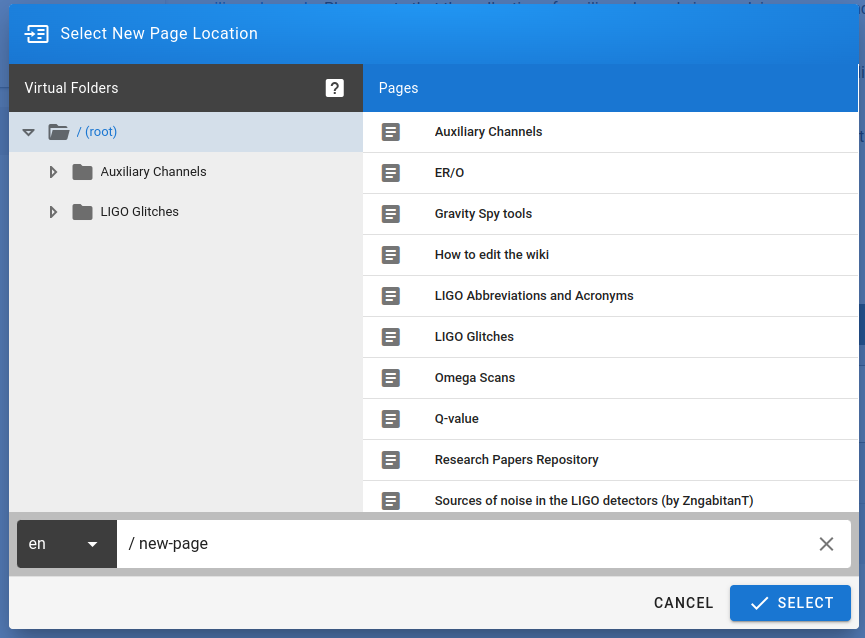
1. Near the bottom of the dialogue box, name the page something explainable that works URL path. This should be similar to what you plan on making the title of the page.
- Make them human readable and avoid special characters other than hythons or underscores.
- Notice, this page's URL extension is "Wiki-guide" and the title of the page is "How to edit the wiki." Your URL and title should be similarly comparable.
2. If you need the URL path to explain a new Auxillary Channel or Glitch for example, you need to specify the path before the name of the new page. E.g. /Channels/your-new-channel-page.
- If you are unclear about the correct URL path, you can click the folder of the URL path you wish it to be, and it will add the path for you.
3. Select the format of the page you wish to edit in from the new dialogue box. Eg. HTML, Markdown, or a Visual Editor.
4. Fill in the page properties for Title, and make sure it's connected to the correct Path. See below

- (Optional) Provide a brief
Descriptionof what the page is about.
5. Begin adding the relevant information in the page format you have created. (E.g. Markdown.)
6. Save the page when you are done editing.
¶ Rules to follow
- Please credit your sources. Do Not Steal.
- Do not link to any inappropriate websites.
- Do not delete any page.
- Respect the input of other contributors.
- Please follow the Wikipedia Manual of Style for consistency.
Thank you for wanting to contribute 💛